
File Juicer

DoubleTake for Mac OS X

Sample Images

Previous Samples

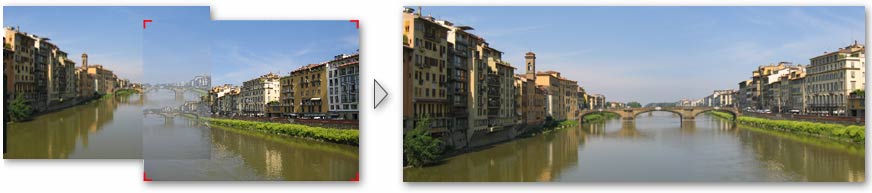
Ponte a Santa Trinità

Florence, Italy - built in 1569. This set of images is easy to stitch, as there is nothing complicated in the seam. The only thing you may do is to widen the seam a bit to make a wider blend in the sky.

Download - 1.1 MB (JPEG 2000)
Ponte a Santa Trinità

Roskilde Fjord

This sunset over Roskilde Fjord, Denmark shows how to use the color adjustment tools in DoubleTake. The 3 images are exposed differently by the automatic settings of the camera. This can cheat the automatic arrangement when you drop them into DoubleTake and you have to arrange them manually. The side photos are adjusted with gamma and exposure to match the center. A bit of saturation has been added too.

Download - 672 kB (JPEG 2000)
Roskilde Fjord

Chambord Castle

This is a case where the images can be stitched well in 2 ways! You need to move one image to the other end, click the overlap, and use the align button.
The center image can be rotated a bit, and the seams can be moved a bit to less critical parts of the castle. A bit of color adjustment has been added too.

Download - 3.4 MB (Originals from the camera)
Chambord Castle

Keizersgracht - Amsterdam

Works well without adjustment. The exposure of the right image may be tweaked, but it is not important.

Download - 1.2 MB (JPEG 2000)
Keizersgracht - Amsterdam

Stonehenge

Stinehenge alternative stitchFits almost perfectly the wrong way. To stitch this one you need to switch the images, click the overlap and the "magnet". Some rotation improves the result.

Download - 0.3 MB (JPEG)
Stonehenge

Screen Shots

screen shots

Download - 0.9 MB (PNG)
DoubleTake takes special care of screenshots. It can search pixel by pixel for the perfect alignment. This works well unless you have screenshots with white borders around them which matches in an infinite number of ways.


An Apple article about the secret way to take screen shots. Doubletake can receive images via copy and paste, but if you want to take more than one screen shot drag and drop from the Desktop may be the simplest way to do it.