

Extract Files from Evernote ENEX Exports

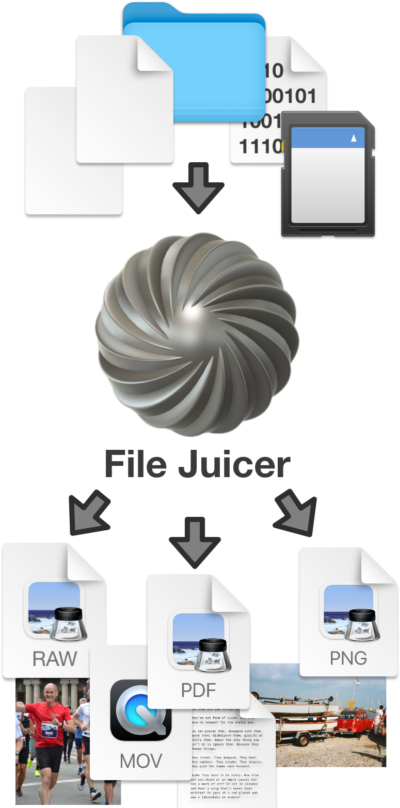
Evernote can export notebooks as .enex files. Like email, ENEX files store attachments Base64-encoded inside an XML structure. File Juicer can extract those attachments -- images, PDFs and other files -- without opening Evernote.
How to export from Evernote
In Evernote, select a notebook or a set of notes, then choose File > Export Notes to get an ENEX file. Drop that file onto File Juicer to extract all the attachments.
Migrating away from Evernote
After Evernote's pricing changes in 2022-2023, many users moved to alternatives like Obsidian, Bear or Apple Notes. Exporting to ENEX first and using File Juicer to recover the attached images and files is a practical first step when migrating.
Text in ENEX files
ENEX files are XML and can be opened in any text editor to read the raw note text. File Juicer handles the attachments; for the text content, open the ENEX file in a text editor or import it directly into your new notes app.