
File Juicer
for macOS
Contents
- Feeding File Juicer
- The Preferences
- File Formats
- Flash Cards and Disk Images
- Text recovery/extraction
- Other uses for File Juicer
- Getting overview of many images
- RAW Files
- Limitations & Troubleshooting
- Technical Details
- Contact
File Juicer: Byte by Byte search, find and extract
File Juicer searches the files byte by byte for
the formats it knows.JPEG, PNG, GIF, PDF, BMP, WMF, EMF, PICT, TIFF, Flash, ZIP, HTML, WAV, AVI, MOV, MPEG, WMV, MP3, MP4, AU and AIFF.
The only requirement for this to work, is that the file to recover is stored in exactly one of the above formats.
File Juicer does not decode and reencode data. For example: dropping an MP3 file on File Juicer will not make it into a WAV or AAC file. It will however extract album cover art, because MP3 files can contain images.
For conversion of from one video file format to another, I recommend looking at VLC or search for a dedicated video converter in Apple's App Store'
Text is slightly different. Here the requirement is "fuzzy": there should not be too much binary data close by. More about text below.
1) Feeding File Juicer
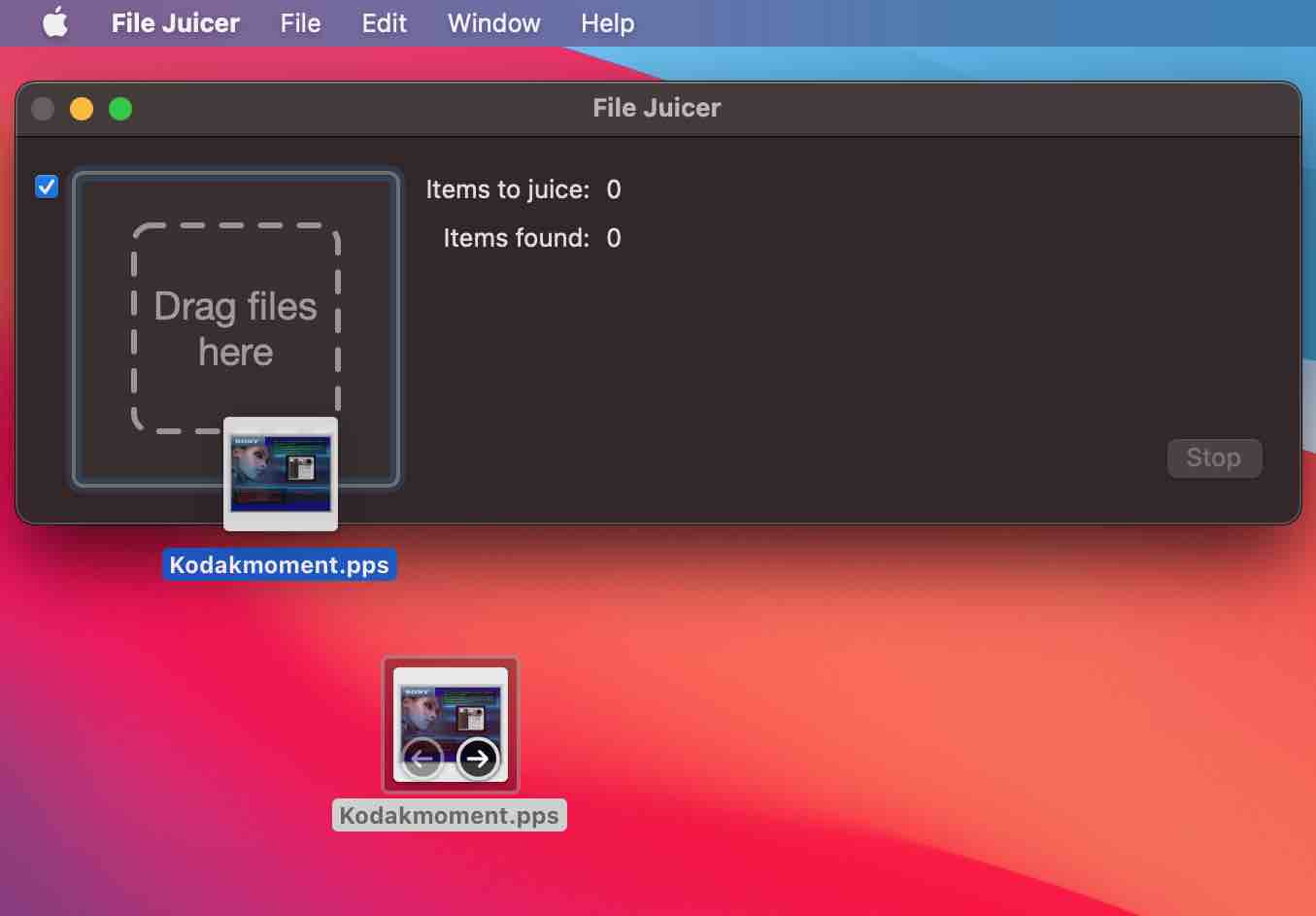
You can tell File Juicer which files to search with drag and drop or point out the files/folders via the File menu.|
Drag files or folders into the File Juicer window.
If you have many windows open, you can still do this. Start the drag from Finder (or an
other application) and while holding down the mouse button, switch applications with
Command-Tab. |
 |
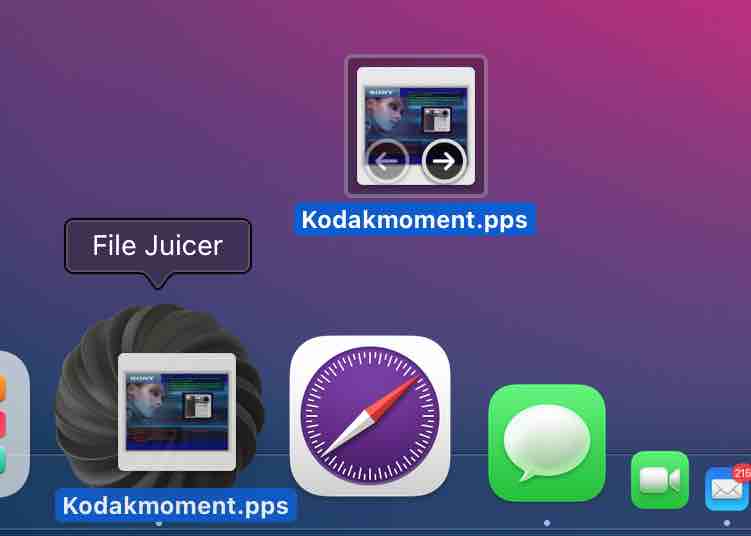
| Drag the files onto File Juicer's Dock
icon. Or onto the File Juicer application icon in Finder. |
 |
|
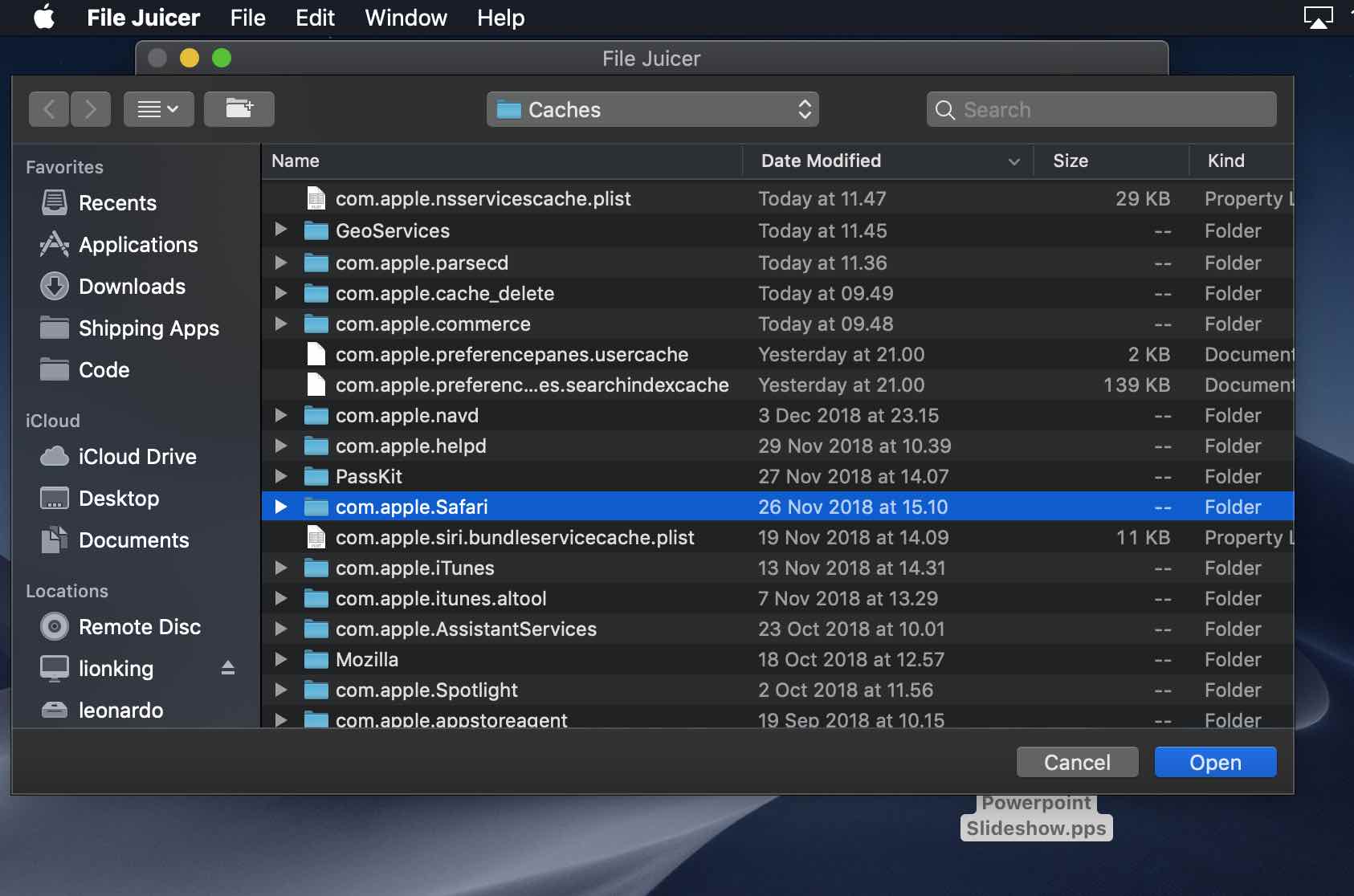
Select the files and folders from the File -> Open...
menu.
Here I have selected Safari's cache folder which usually contain 1000 images - mostly ads.
You can select more files and folders at once by holding shift down while selecting the file
or folder.
|
|
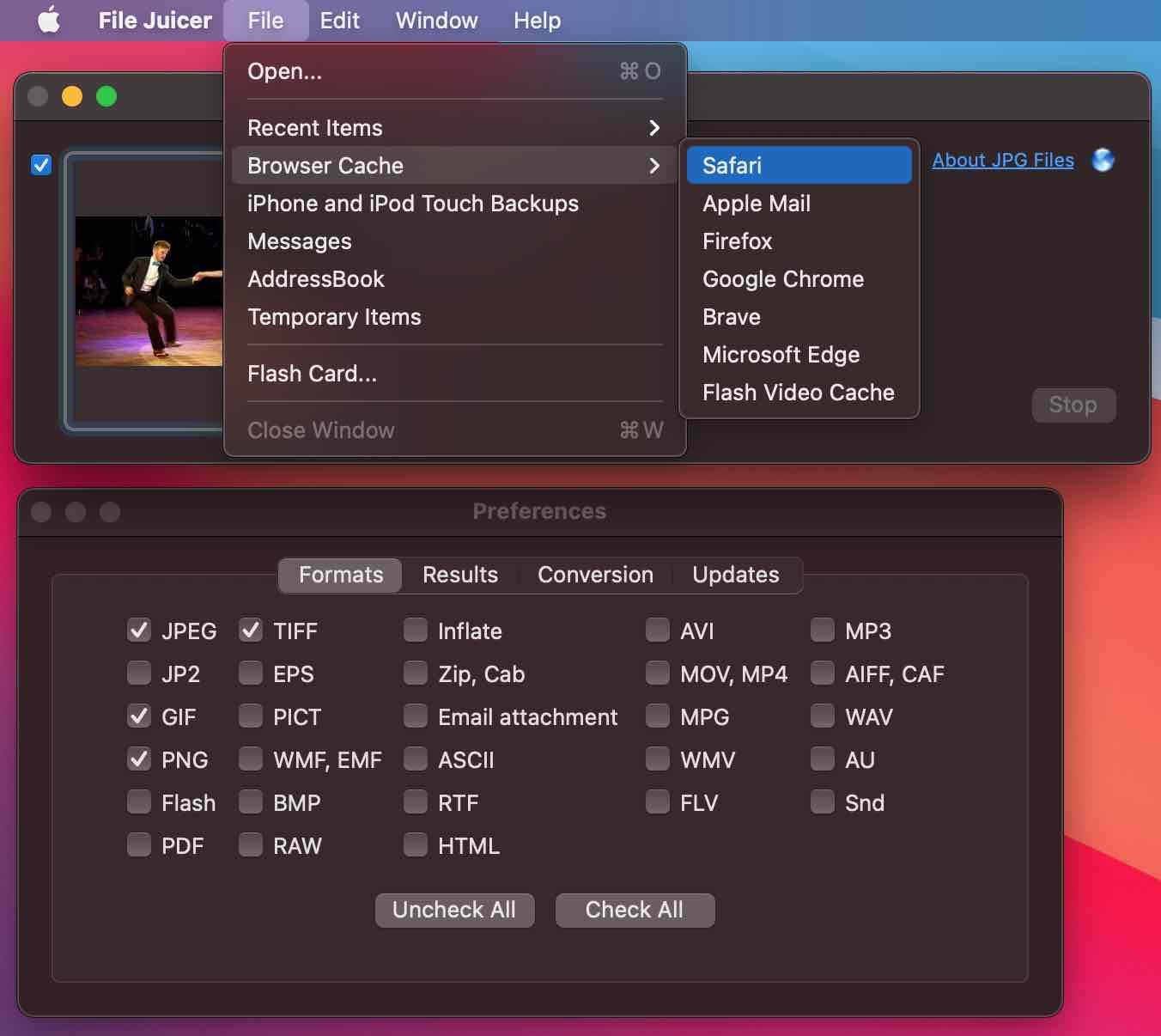
| From the Menu There are shortcuts for juicing the caches of web browsers like Safari and Google Chrome, and for the temporary images different applications save. |
 |
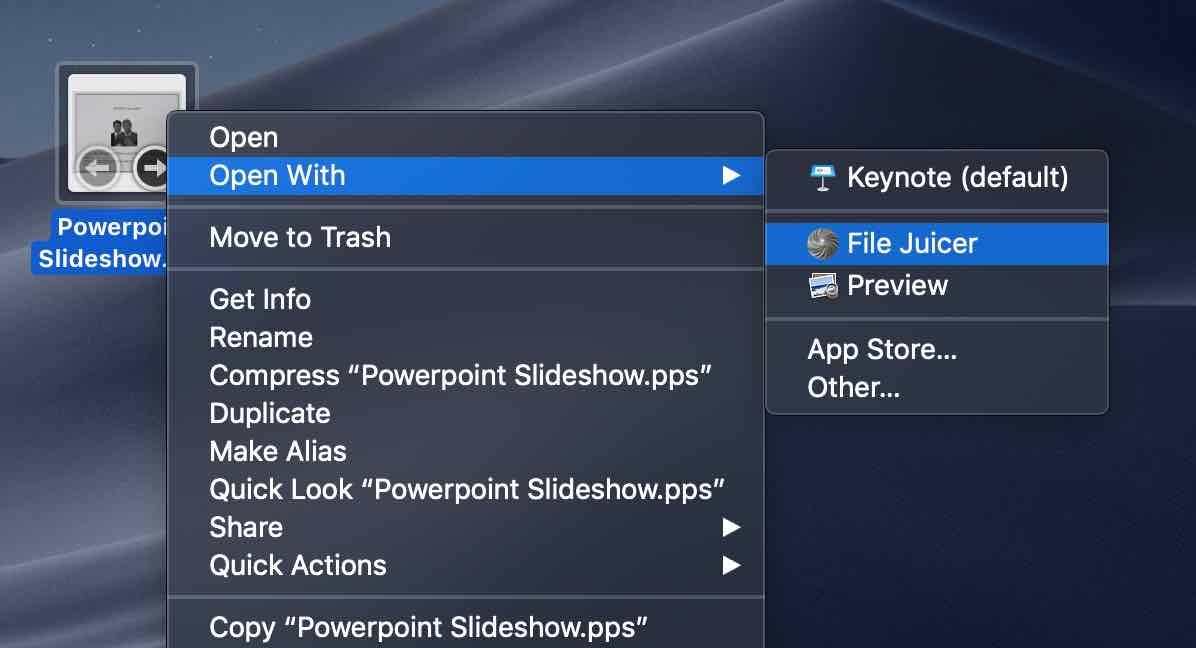
| From Finder You can "juice" .EXE, .PPS, .PPT and .PDF files from Finder, by holding down the Control key while clicking on the file. |
 |
2) The Preferences
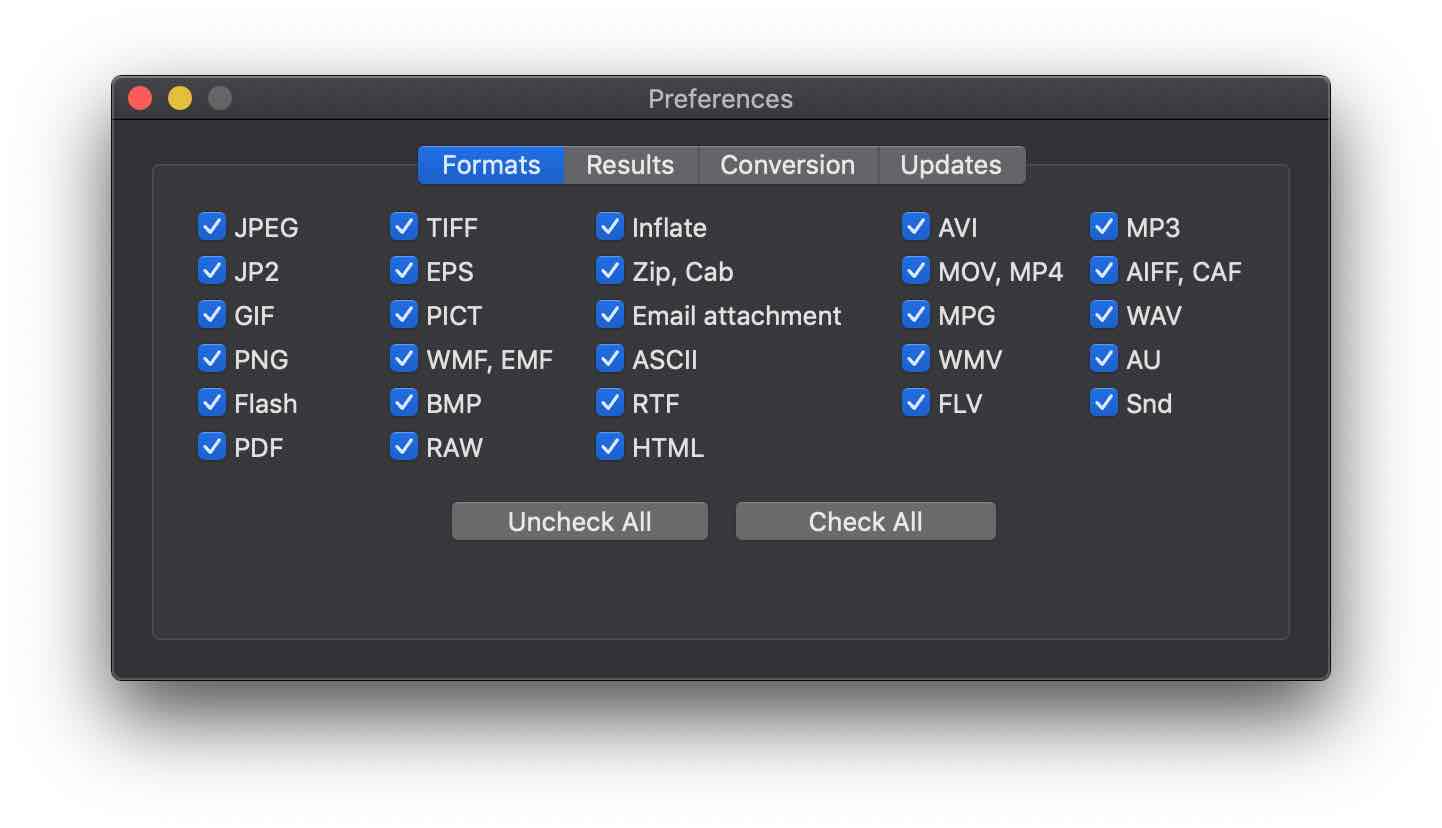
Email attachments are a special case, as it requires File Juicer to do base64 decoding, which is used for sending any kind of file as email. File Juicer just decodes the attachment and tries to figure out what kind of file it has found, in case the file name or file type is not immediately available.
File Juicer has one requirement of the files it searches: that the images should be stored in their original format inside the files. In Flash, QuickTime and Windows Media Files, the original files are sometimes converted into an internal format, which File Juicer does not understand.
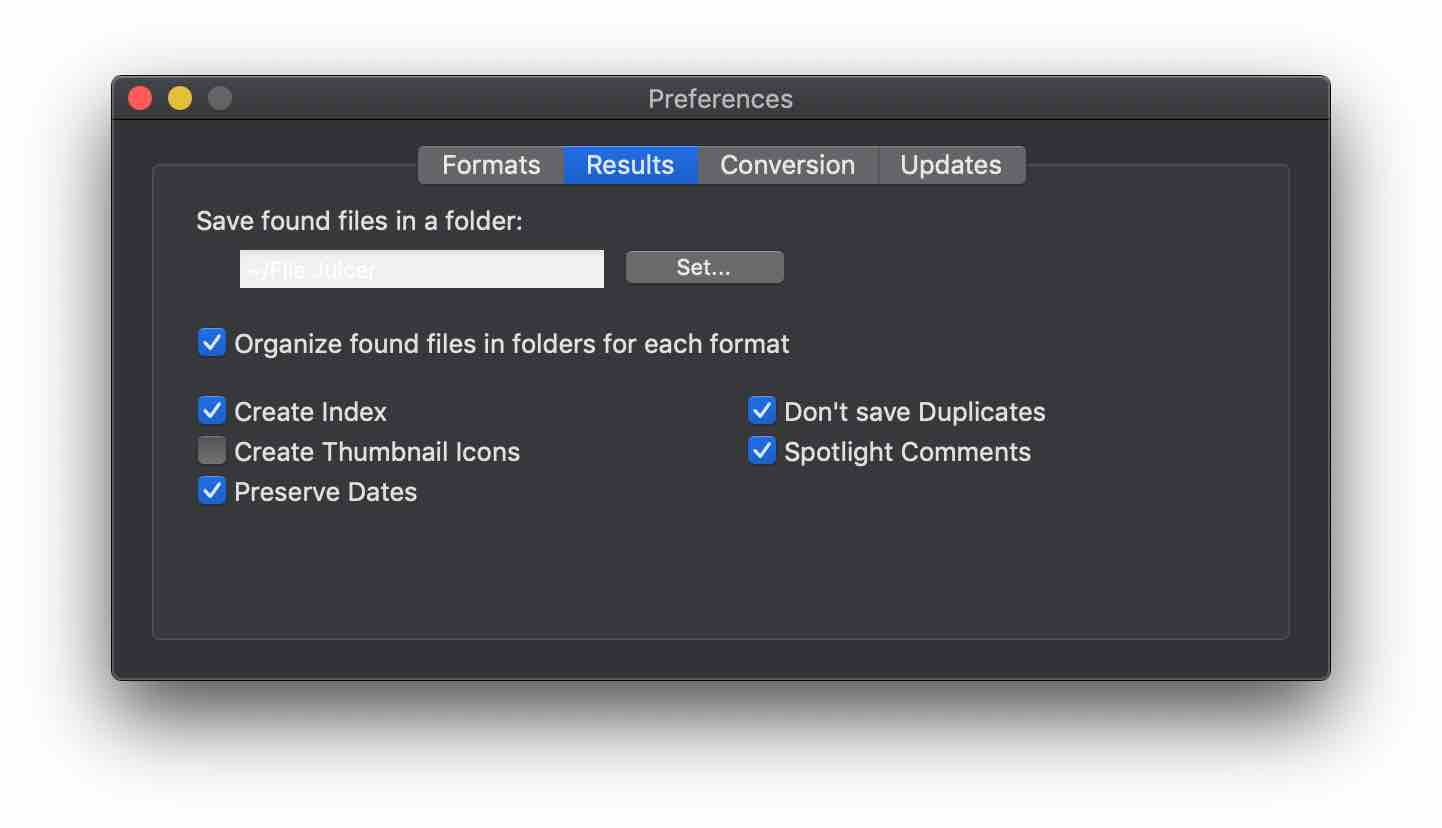
Crating thumbnails can take some time, but for an overview of the images, this is convenient. You can enable this check box, and skip the process manually if it takes too long.
Don't save duplicates, compare the contents of the images it finds, and if it find the same image twice, it will not save the copies, even if they have different names of dates.
The checkbox "Organize files in folders for each format" is helpful when extracting many files of different formats. If you are generating icons to test which files may be corrupt, File Juicer will place files where it could not generate icons inside yet another folder.
If (when!) I learn about bugs, I will fix them and update the web site.
3 File Formats
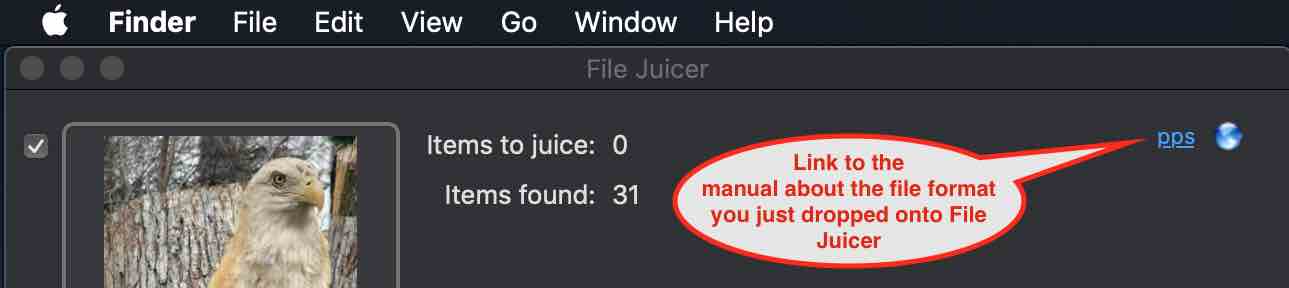 Up to date information is
in the File Formats List. I have added information
about more than 100 common and not so common file formats, what they may contain, and hints to other
applications which are relevant.
Up to date information is
in the File Formats List. I have added information
about more than 100 common and not so common file formats, what they may contain, and hints to other
applications which are relevant.
Here is a short list of the formats File Juicer handles:
- Microsoft PowerPoint, Word & Excel. This is also where most WMF and EMF files are found, as they are the native clipboard types for images on Windows.
- RAW files (from Canon digital cameras) can contain a JPEG version of the image taken. File Juicer makes
it easy to extract them.
- Web browser cache files from Safari, Mozilla and Internet Explorer. You find those in the "Library" folder (see above on the screen shot of the "Open" sheet).
- Applications can be dropped on File Juicer, and the images known to File Juicer will be extracted. You can do that by using the "Contextual Menu" in Finder too.
- Apple Keynote
- Email attachments from Apple Mail. You can extract those by using Mail too, and that is the preferred way, but this is not practical for mailboxes not in use or mail boxes which are damaged or stored on CD's.
- QuickTime and Flash files are examples of file formats which do contain images, but they are not stored in any of the formats File Juicer currently support.
- PDF files can contain bitmap images in JPEG format and in losslessly compressed formats. File Juicer can find the JPEG images, as they are, but also as PDFs. This is because PDF files has color management, and the JPEGs can get additional color information. When File Juicer extract PDF images form a PDF (!), it will also copy the color information. The lossless images are saved only as PDF images.
- EXE files. Flash animations can be saved as self playing Windows applications, so Windows users who don't have a Flash player, can play them anyway. This makes them unusable on macOS. No longer! Check the Flash and the Inflate check boxes in the preferences and Juice them. There is a good chance you will get to the Flash animation. On occasion, the result of first juicing, is not Flash files, but files ending in ".inflated". Juice (the largest) of these to see if the Flash file is in there.
- Some applications (.prc files) for the Palm handheld, are distributed as .exe files, even if Mac users
can not use them. If these exe files have been made with WinZip, File Juicer can extract them.
For more info about which formats File Juicer have extracted files from, see the File Juicer Formats page.
4 Flash Cards and Disk Images
File Juicer can extract files from disk images. This is useful for un-erasing files deleted by accident.The situation where I have needed this mostly, is to recover photos on the flash card from my digital camera.
You can try this on your flash card now, when you have read the images in your normal preferred way. That way you get an idea of what to expect the day you need it. File juicer uses Apples's "Disk Utility" tool to make a disk image of your flash card.
To make a disk image from a flash card, choose "Flash Card..." from the File menu, and File Juicer will read the flash card, and extract the files from the result, and keep the disk image.
When you recover images from flash cards, you may get many tiny JPG files which are remainders of images. To sort out which are good and which are not, you can set File Juicer's preferences to generate thumbnail icons, or just sort by size.
If you have erased single images, shot new ones, and erased again on the flash card, the results may be worse as the images gets broken up and the parts stored different places on the card. I usually empty my flash card completely when I connect to my Mac, so I have found one year old images on my cards.
You can make disk images of any type of disk, and try on those. It may be very slow if you try to juice disk images larger than the amount of RAM in your Mac.
More about flash card recovery
5 Text recovery/extraction
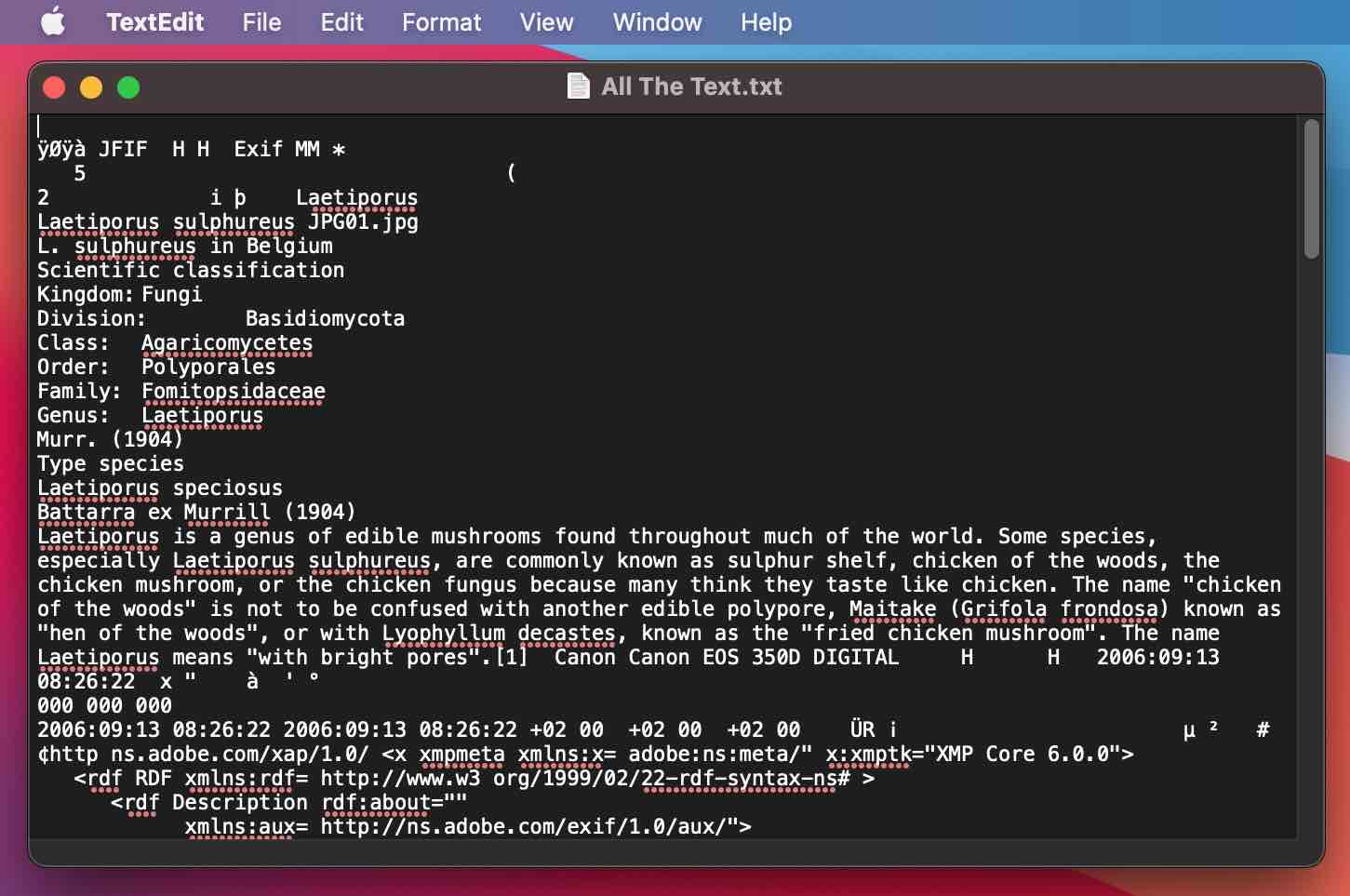
Text can get stuck in unreadable files mixed together with binary data. File Juicer can search any file for data which might be text, and extract it to a text file readable with any text editing application.On this screen shot, I have filtered a JPEG file, and the tiny amounts of text inside gets extracted. File Juicer names the file with a percentage in the name, this percentage tells you how large a part of the file is text. For the mp3 file it was about 1%. Even with files made by word processors this may be well below 50%.
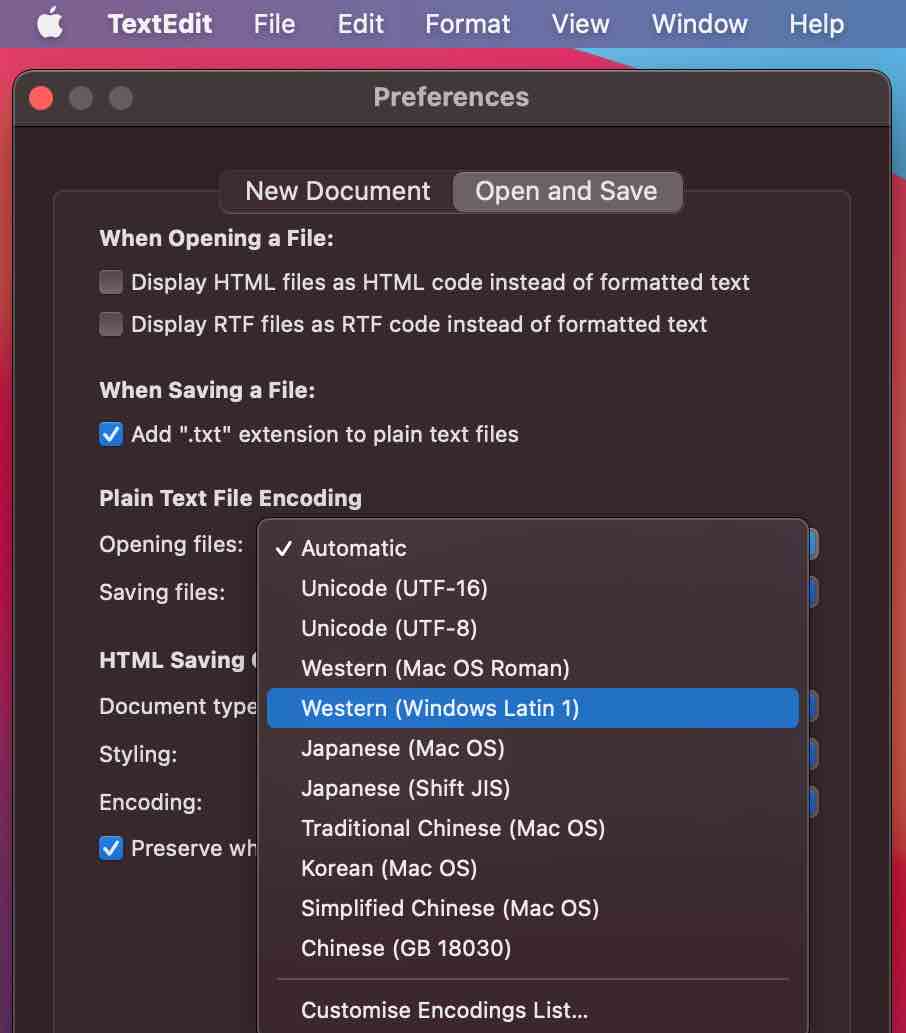
If you filter files from Microsoft Office, or files of Windows origin, you may benefit from using the Preferences in TextEdit which lets you interpret those files better.
When File Juicer extract text from PDF and Word documents, its encoding is UTF-8 which TextEdit handles nicely even if it is not the default.
6 Other Uses for File Juicer
- If image files lose their extension and file type, and you do not know what it was, they can not be opened. File Juicer will figure out the correct file type, and append an extension.
- If files are stored in deeply nested folders, File Juicer can make an unnested copy of all the images. iPhoto stores images in nested folders, and this can be used to extract images there. Finders search function can be used for the same purpose.
- Recovering albums from a damaged iPhoto library. If the iPhoto library gets damaged, and iPhoto can not repair it, the files are still inside the folders, but they are organized in folders by date. Version 4 of iPhoto (but not the newer versions) also makes album folders with aliases to the original images. If you take one of these folders and drop on File Juicer, it will create copies of the original files - not the aliases.
- Stripping icons from images. This may be useful in some cases, perhaps saving a bit of disk space, or stripping the icons because they do not work well outside Mac OS. This is a limited use feature, as in most cases, the icons are ignored by the software which does not understand them.
7 Getting Overview of Many Images
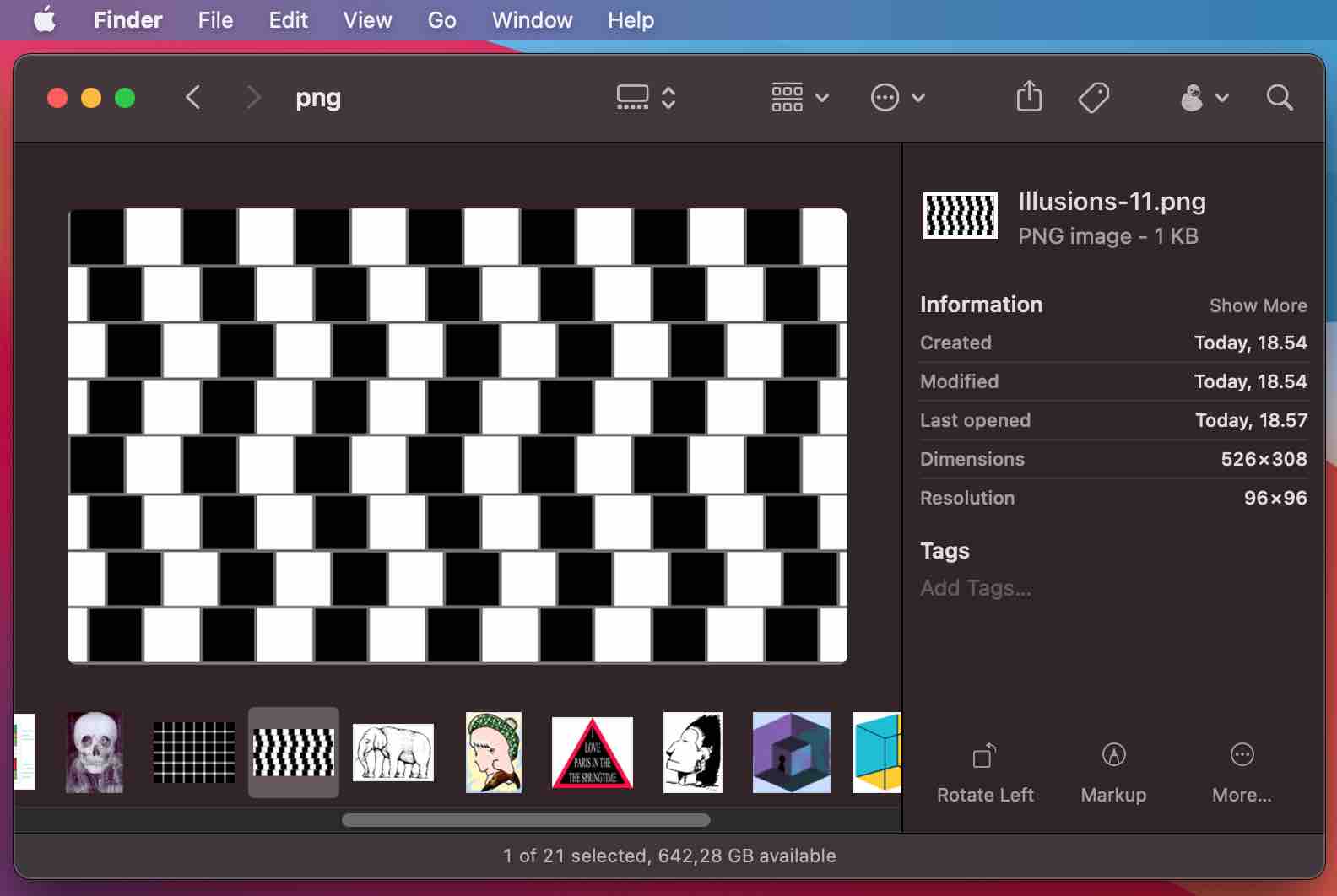
With File Juicer you can collect many images, in just one juicing. File Juicer can put icons on images of the types: JPG, GIF, TIFF, PNG and PDF, so getting an overview in Finder is easy.Two options from the preferences are:
- Preserve Dates - this will copy the date from the files searched to the files extracted. This will help getting a overview in Finder when sorting by date.
- Organize found files after format - this will sort the images in subfolders after format. Files for
which no icon could be generated are placed in yet another subfolder within. Those files may be corrupt
or have very small icons.
Other options for handling lots of images are:
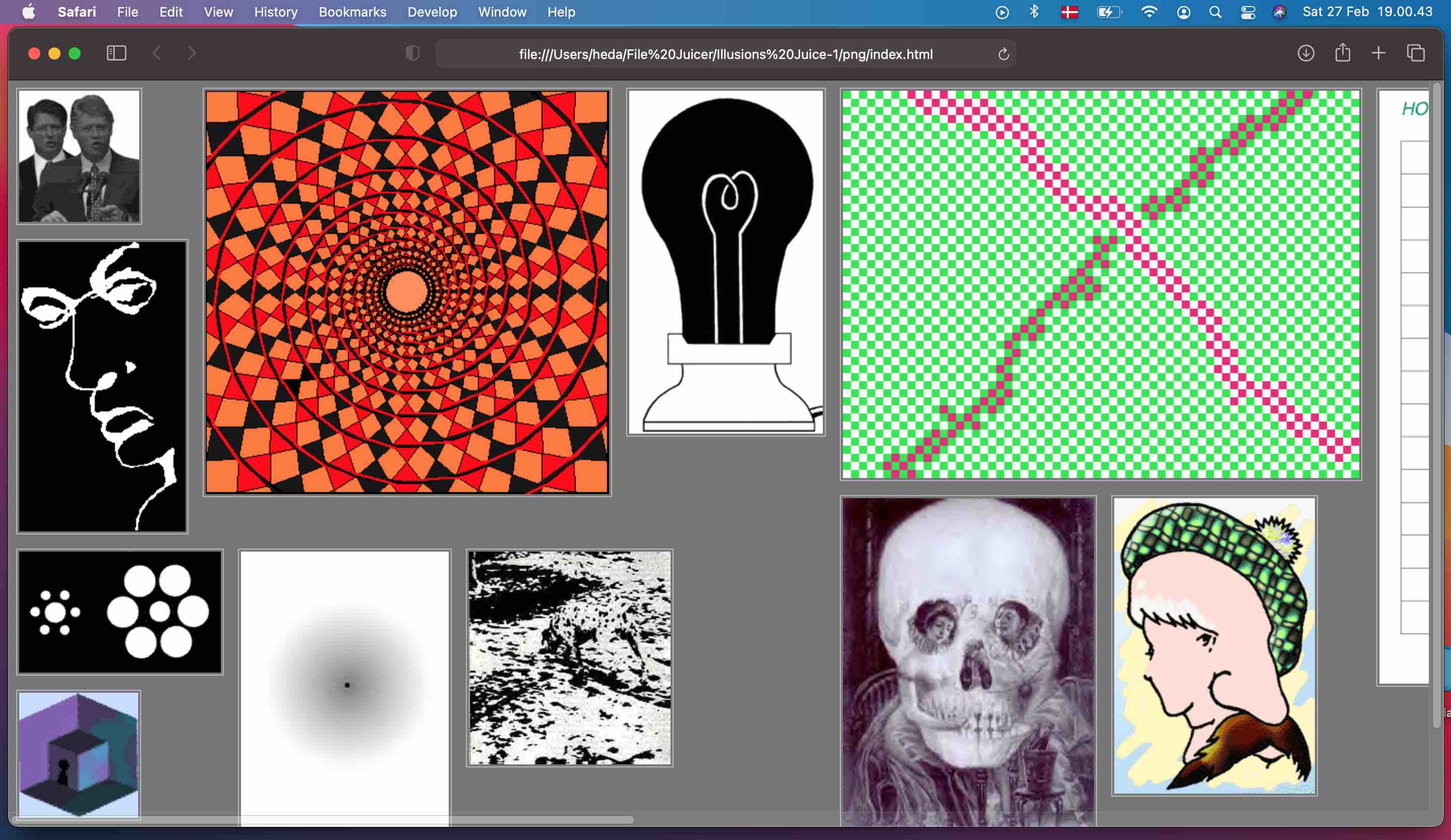
- Safari. File Juicer generates index files in html format. Quick to open in Safari. Good for many smaller images
- Preview. Preview is fast for opening many images in one go.
- Apple Photos. This is best for photographs, or larger images. It is not suited for tiny graphics.
- Sample PPS file: illusions.pps
8 Camera RAW Files
- If you want to convert the RAW files to JPEG or TIFF, just drop them on File Juicer with the JPEG and/or TIFF checkboxes set in the preferences
- If you want the JPEG previews usually found inside RAW files extracted, turn OFF conversion in the preferences. This option is a lot faster.
9 Limitations & Troubleshooting
File Juicer comes with no warranty, expressed or implied. It may or may not work as intended, and I am not responsible for any damages, special, indirect, consequential, or whatsoever caused by using the software.
File Juicer does not decrypt PDF files which are encrypted. This will result in white images.
File Juicer recognize .ZIP, ,bz2, .rar and "deflate" compressed data and will extract it so you can decompress it with Finder, but not other compression algorithms. It does not decrypt encrypted data.
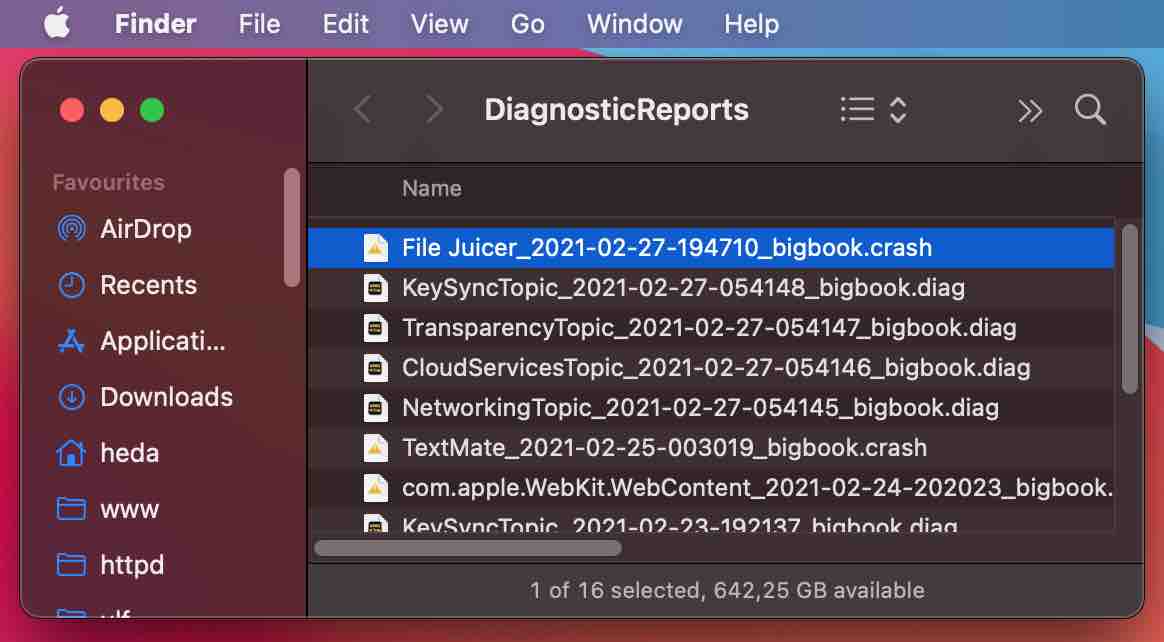
If File Juicer should crash and you wish to tell me about it, I would appreciate if you send me the file:
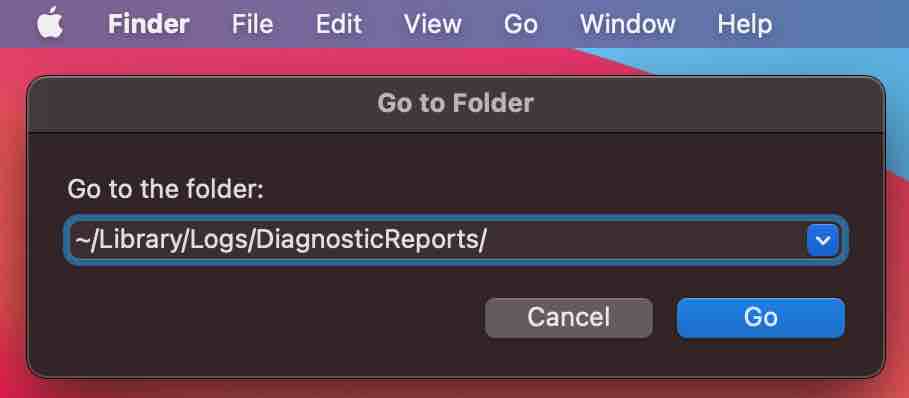
~/Library/Logs/DiagnosticReports/File Juicer_-date-and-computername.crash

If possible send me the file causing the crash!
If you can't send me the file(s), the be more detailed in explaining what I can do to replicate the crash.
10 Technical Details
Log Files
File Juicer saves two log files in your Library > Logs folder. "FileJuicerLog.txt" and "FileJuicerResultsLog.txt". They are created for every "juicing", and contain the names of the files juiced and the files found. The log files are emptied every time you juice a new set of files, so you don't need to delete them as they don't grow.Special Names on found files
Some files get special names. If they contain "[1346]", it means that compressed data was found 1346 bytes from the beginning of the file.If the end is ".inflated" or ".bz2 extracted", it refers to the name of decompression algorithm used when extracting the file, and that the extracted data was not one of the formats File Juicer can identify. See .inflated for more info.
Text files can have something like "(6%)" in the file name. It means that only 6% of the juiced file was text.
Display of Images while Juicing
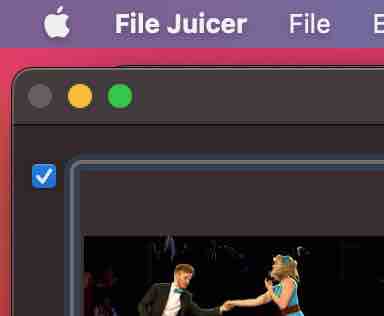
You can turn this off by the little checkbox. This makes File Juicer a bit faster, but what is more important, is that it becomes more stable under very large "juicings". An example is if you have a disk image of a PC hard disk, a lot of remainders of deleted files can be found, and Mac OS 10.3.9 has rare issues when trying to display damaged PDF or TIFF files.Using File Juicer from the Command Line
File Juicer understands the open command which can be useful if you wish to do a bit of scripting.
Example to use in the Terminal app
open Kodakmoment.pps -a "File Juicer"
About the open command

10 Contact
 Feedback and bug reports
are welcome.
Feedback and bug reports
are welcome.
Echo One
Henrik Dalgaard
support@echoone.com