

Chrome Cache Files
Extract and view Chrome cache files
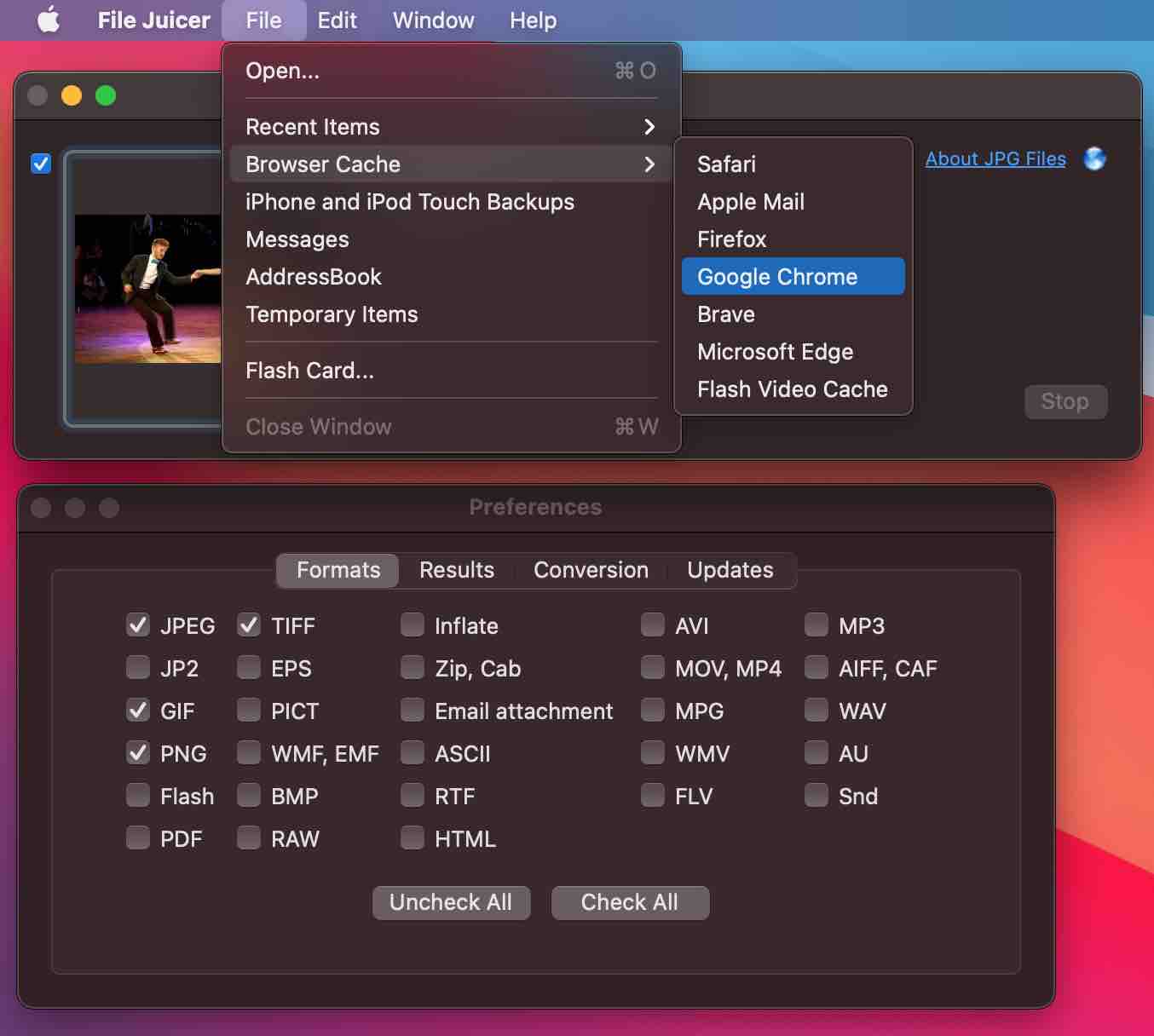
Chrome's cache files have no extension and are named with unique identifiers. File Juicer identifies them by their file signatures and extracts JPEG, PNG, WebP, GIF and other formats. Pick the Chrome Cache from File Juicer's File menu and browse the results in Finder afterwards.
Chromium-based browsers
Edge, Brave and Opera are all based on Chromium and use the same cache format as Chrome. File Juicer can extract from all of them. Their caches are in ~/Library/Caches/ under their respective folder names.
Where is Chrome's cache located?
Chrome's cache is at ~/Library/Caches/Google/Chrome. File Juicer has a shortcut to it in the File menu. To extract from only a subset of files, sort them by date in Finder and drop just those onto File Juicer.
Is Chrome sandboxed?
Chrome is sandboxed but is not distributed through the Mac App Store, so it stores its cache in ~/Library/Caches rather than the sandboxed container location Safari uses.
How do I open Chrome's cache folder?
The cache is inside your hidden Library folder. In Finder, hold down the alt key and select Go from the menu. The Library folder will appear and you can navigate to Caches/Google/Chrome from there.
Which types of files are found in the cache?
Browser caches contain images, text, layout and code. Cached files have no file extensions. File Juicer identifies and extracts standard types like JPEG, PNG, WebP and GIF by their file signatures regardless of the missing extension.
Recovering cached web pages
Google removed its cached page feature in early 2024. If you are looking for an old version of a web page, The Internet Archive is the best place to check. If you visited the page yourself, your local browser cache may still have a copy -- drop the Chrome cache folder onto File Juicer to search for it.