

Browser Cache Files and Web Archives
Rescue lost data
Have you written a long email or blog post and accidentally lost everything? The data might still be in the browser cache. File Juicer can extract the contents of a cache folder so you can search through what was there.
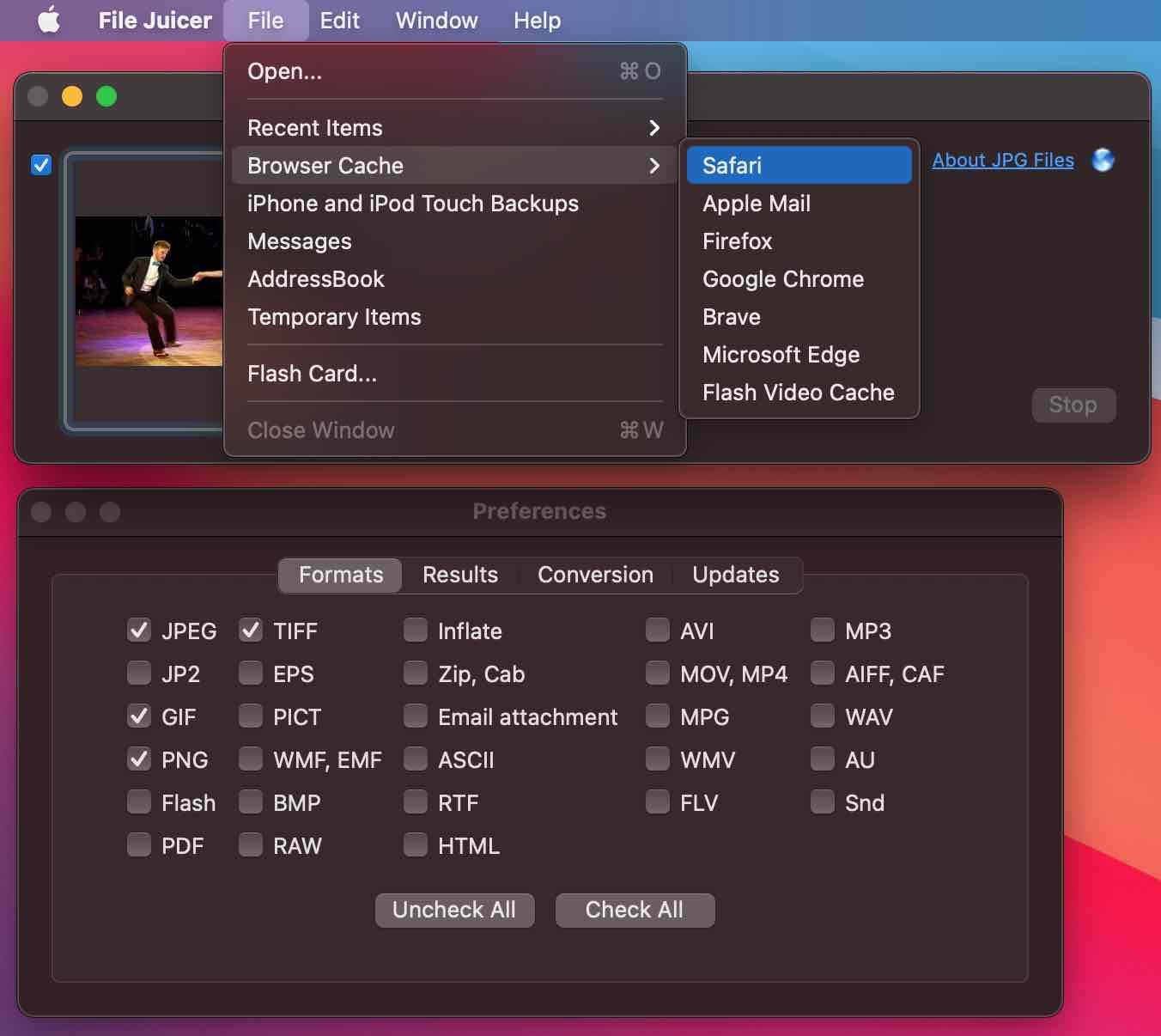
Browser caches can contain all file formats. Pick the cache you want to extract and browse the results in Finder afterwards.
Safari's cache files are extensionless files named with a UUID. File Juicer identifies them by their contents rather than their file extension.
Full Disk Access
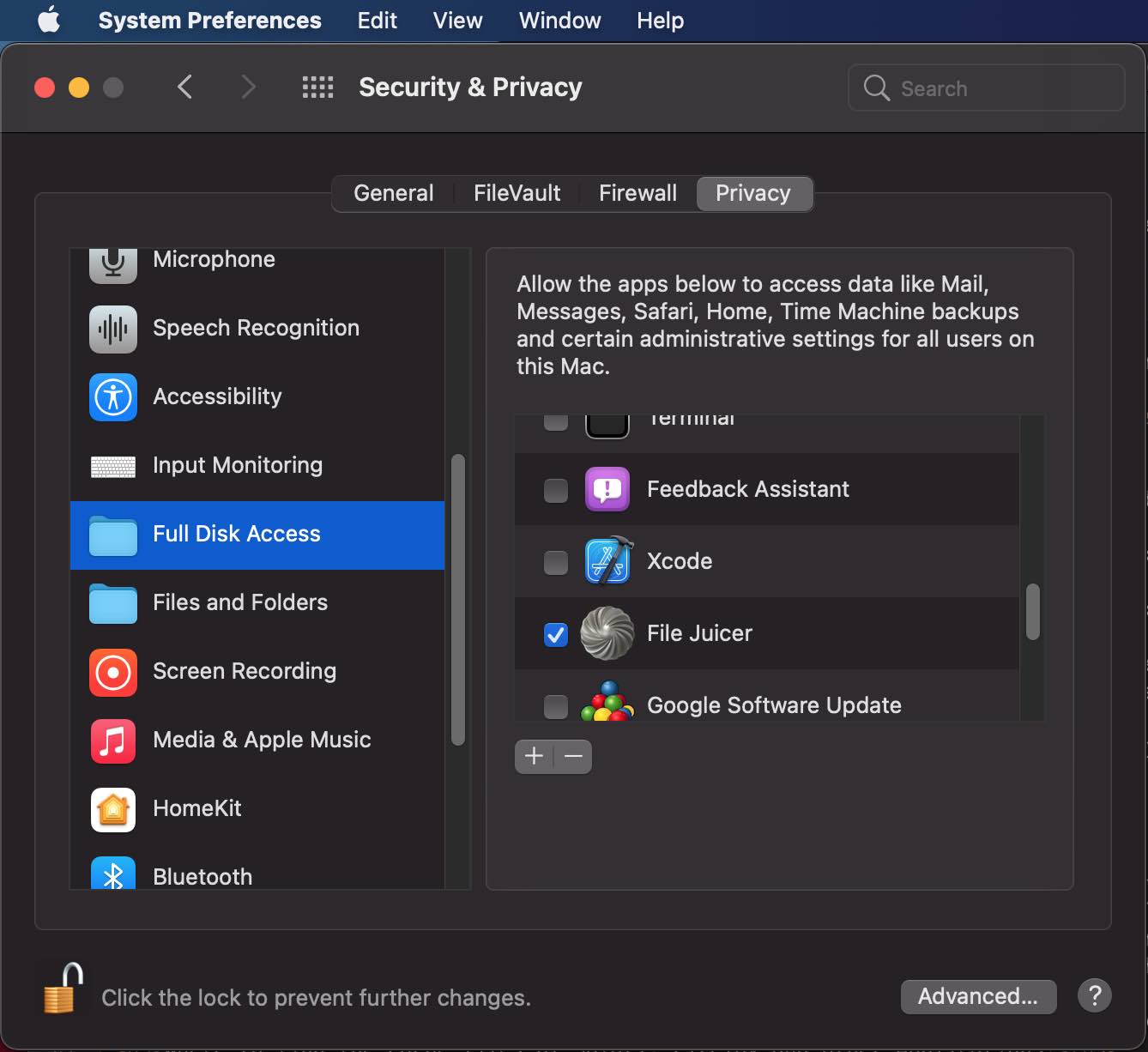
File Juicer needs Full Disk Access to read browser cache folders. Go to System Settings > Privacy & Security > Full Disk Access and add File Juicer.
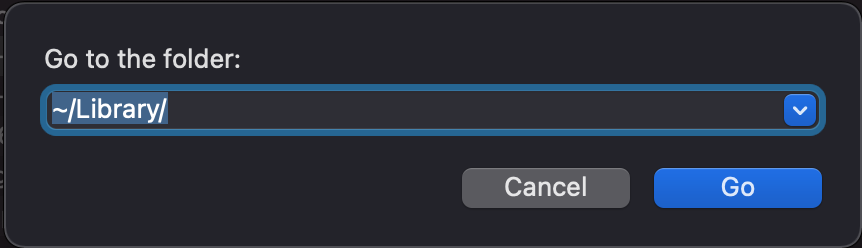
If you prefer not to grant Full Disk Access, you can navigate to ~/Library/ in Finder with Shift-Cmd-G and drag the cache folder onto File Juicer manually.
Thousands of images
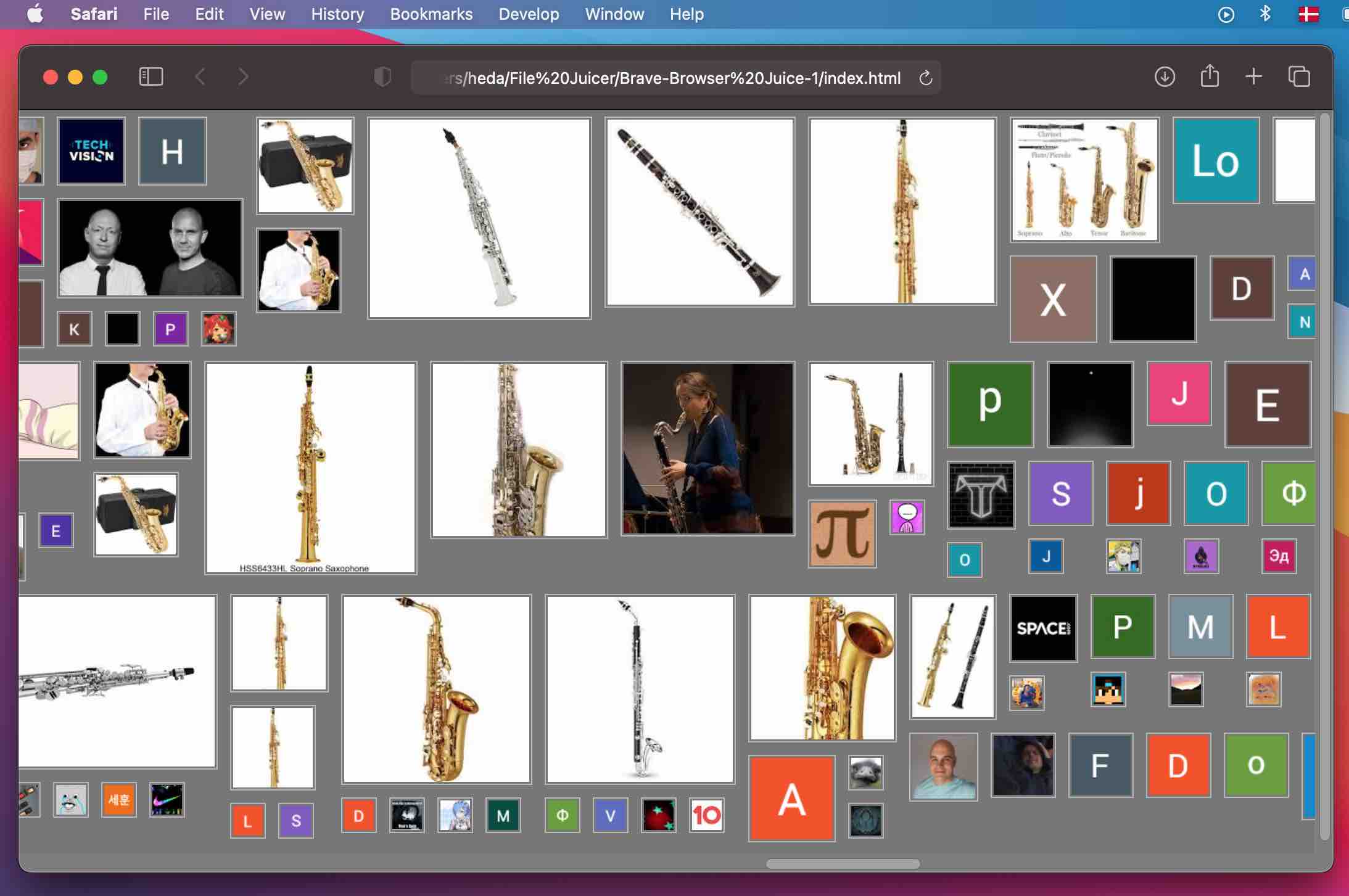
File Juicer creates a lightweight index of the images it extracts from a cache. Open the index.html file in your browser to scroll through all the images at once.
Web archives
File Juicer extracts the contents of web archives. Safari web archives have the extension .webarchive and all embedded content is extracted. Google Chrome and Chromium-based browsers (Chrome, Brave, Edge, Opera) strip extensions from cached files, but File Juicer can identify and extract them regardless.
Where to find cache files
Safari's cache is at ~/Library/Containers/com.apple.Safari/Data/Library/Caches. File Juicer has shortcuts to the most common browser caches built in. For other applications that cache data in the same way, look in ~/Library/Caches and drag the relevant folder onto File Juicer.
Telegram cache

Telegram caches images in ~/Library/Group Containers/, which is where macOS apps store data shared between multiple processes. Drag the Telegram cache folder onto File Juicer to extract the images inside.
By default Telegram stores messages encrypted on their servers, but Telegram holds the key. For end-to-end encrypted messaging you need to use a Secret Chat.
How do I open the Caches folder?
The Caches folder is inside your hidden Library folder. In Finder, select Go from the menu while holding down the alt key. The Library folder will appear and you can find the Caches folder inside.
Which types of files are found in the cache?
Browser caches contain images, text, layout and code. Cached files may not have file extensions, or data may be stored in an undocumented format. File Juicer identifies and extracts standard types like JPEG, PNG, WebP and GIF regardless of whether the file has an extension.
Recover lost HTML from your browser cache
If you write HTML and accidentally delete your work, you may be able to recover the files if you tested the pages in a browser -- the browser may still have them cached. Navigate to ~/Library/Caches and drop the relevant folder onto File Juicer to search for HTML files.