
Extract Images and Text from PDF
PDF files can contain bitmap images, text, fonts, vector graphics and ICC colour profiles. File Juicer can extract the bitmap images stored inside a PDF as JPEG, TIFF, PNG or PDF fragments, and can also extract text as plain text or RTF. File Juicer can also find and extract PDF files embedded inside other files.
JPEG
Compressed images are stored in PDF as embedded JPEG files and can be extracted exactly as they are without any recompression or quality loss.
EPS and PostScript
EPS and PostScript files are converted to PDF before extraction, the same way Preview handles them.
Losslessly compressed images
File Juicer extracts losslessly compressed images as PDF fragments to preserve the ICC colour information with the file.
Vector graphics
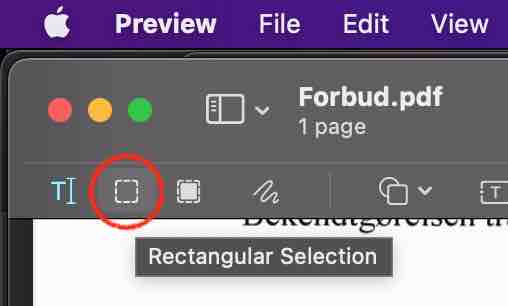
Vector graphics are an integrated part of a PDF file with no clear boundary between text and graphics. To extract vector graphics from a PDF, use Apple Preview: place a crop over the area you want and copy the contents to a new PDF.
One exception is an EPS file embedded in a Word document and then printed to PDF -- File Juicer can extract the original EPS from that PDF.
Images mirrored, inverted or cut into strips
File Juicer extracts images exactly as they are stored inside the PDF, with no changes. PDF files are produced by many different applications, and some of them cut images into strips, invert, rotate or mirror them, scale them, or cover parts of them. What ends up in the PDF is decided by the application that created it.
 You can work around this by rendering the PDF to a pixel-based format with Preview:
- Select the image you want to save
- Copy it
- Pick New from the File menu
- Save as TIFF, JPEG or PNG
Text
File Juicer can extract text from PDF both as plain text and as RTF. Enable the "ascii" checkbox in preferences for plain text output. The extracted text is saved as UTF-8, which preserves accented and non-Latin characters.
RTF can also be useful if you want to convert a simple PDF to Word.
CSV data
CSV data can sometimes be parsed from PDF files, but this needs custom handling in each case.
Scanned text
If you have a scanned document, File Juicer can extract the images from it, but it does not convert images to text. For that you need an Optical Character Recognition application.
ICC profiles

PDF files may contain ICC colour profiles stored separately from the images. When File Juicer saves images from a PDF it includes the ICC profiles correctly.
Encrypted PDF files
Encrypted PDF files are not searched or decoded by File Juicer. If the PDF allows printing you can print it to a new PDF with Preview and extract from that instead. Otherwise you need a PDF password recovery tool.
Troublesome PDF files
Some PDF files encode images in unusual ways that File Juicer does not recognise (see File Juicer's preferences for a list of supported formats). Preview can sometimes help by normalising the PDF into a more standard form if you "Print" the PDF to PDF.
Negative images
Some PDF files are designed to be printed on negative film and contain negative CMYK images. The lossless way to handle these is to let File Juicer extract them as PDF and then convert those PDF fragments to JPEG with Preview.
You can also normalise these files by "Printing" the PDF to PDF with Preview, then dropping the result onto File Juicer. This produces soft-proofed images that come fairly close to the intended appearance.
You can also invert CMYK images with Adobe Photoshop.